Anyone who uses WordPress is familiar with the trusty TinyMCE editor that, by default, is used to enter blog posts. Most will also be familiar with the HTML text entry box that lives on the tab next door. If you’ve used both, you’ve probably also come across the frustration of your carefully written HTML being changed and odd formatting quirks being introduced when switching back and forth between the two.
For writers who want to concentrate on writing, the default text entry system of WordPress is often not ideal. Writing is about crafting sentences and building paragraphs. The formatting tools that come with WordPress are often a distraction, particularly when they don’t play nice with the HTML. One solution is to replace the default editor with something else, but for a distraction free writing environment that works wonderfully with HTML, nothing can beat Markdown.
What Is Markdown?
Markdown is a markup notation that allows for the creation of content that can easily be converted to correct HTML. It was created by the blogger John Gruber. Markdown files contain nothing but text. Think of it as HTML-lite, but without a lot of the headache that comes from writing in HTML. We’ll go through some of the basics here, but if you want to learn the full syntax, check out Gruber’s site.
Markdown Basics
While the idea of writing without a WYSIWYG environment might seem daunting to some, once you’ve gotten to grips with the fairly straightforward syntax of Markdown, you’ll probably fall in love with it (this post was written in Markdown, and then converted to HTML).
Sometimes there’s more than one way to achieve the same thing in Markdown (there are various “dialects”); for example, title tags can be created in a couple of ways, but we’ll have a look at the very basics just to whet your appetite.
Titles And Subtitles
# This Will Be Converted To An H1 Title
## This Will Be Converted To An H2 Title
And so on.
Links
Links are created with the following markup
[Anchor Text](www.example.com)
Text Formatting
*This Is In Italics*
**And This Is Bold**
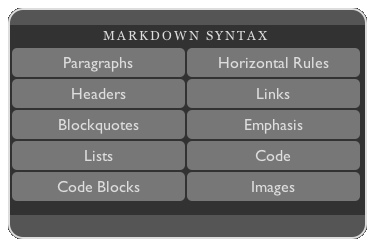
There is also markup for adding images, ordered and unordered bullet lists, footnotes, and just about anything else you might want to add.
Using Markdown With WordPress
Text Editor
Since Markdown is just text, you can use any text editor to create it, and then convert it to HTML using a conversion tool before pasting it into the WordPress text entry box, but there are many applications that have been developed to streamline the process. The following applications have Markdown processors built-in and have the ability to let you preview the final output.
Windows
MarkdownPad features a split-pane window, with editing being carried out on one pane, and a realtime preview visible on the other, although it’s possible to hide the preview and concentrate on the writing. It can export to HTML and PDF, and it’s also possible to just copy the HTML for pasting into WordPress without exporting.
Mac
If you’re familiar with John Gruber, the original creator of Markdown, and his Daring Fireball blog, you’ll be aware that he’s one of the foremost Apple bloggers and commentators. So, as you might expect, OS X has many Markdown editors available. One of the best is ByWord, which has a beautiful minimalist interface and is designed for distraction free writing.
Linux
Linux users might want to give ReText a spin, it’s similar in appearance and functionality to MarkdownPad.
WP-Markdown
If you’d prefer to write your text directly into WordPress, this plugin will let you do just that. Text is entered as Markdown and then converted to HTML for saving. Using this plugin also brings with it the handy side benefit of letting commenters use Markdown in their comments.
About Graeme Caldwell — Graeme works as an inbound marketer for Nexcess, a leading provider of Magento and WordPress hosting. Follow Nexcess on Twitter at @nexcess, Like them on Facebook and check out their tech/hosting blog, http://blog.nexcess.net/.

